
RadiusOne

MikroTik integration

Built around MikroTik

Connect a MikroTik on RouterOS 6 or 7 with one command. Keep the hotspot and PPPoE you already run, or let RadiusOne set up a new router for you.

  • RouterOS 6 and 7
  • One command
  • No reset to keep your setup
  • VLANs from your switch or OLT
Phoneshotspot vouchersHomesPPPoE accountsYour MikroTikRouterOS 6 or 7your ports, your rulesRadiusOnelogins · usage · cut-offsInternetyour uplink, as beforeencrypted tunnelcustomers' browsingPhoneshotspotHomesPPPoEYour MikroTikRouterOS 6 or 7your ports, your rulesRadiusOnelogins · usagecut-offsInternetyour uplink,as beforetunnelbrowsing

Logins, usage records and cut-offs travel through the encrypted tunnel, and so does the platform's own access to the router, which it uses to read its health and apply the services you plan. Your customers' browsing goes straight out of your router, as before.

Connect a router in three steps

  1. Add the router

    In the dashboard, add a router and copy its one-line command. It works for 24 hours.

  2. Paste it in the terminal

    The router reads its own RouterOS version, downloads the right setup and opens an encrypted tunnel to RadiusOne: WireGuard on RouterOS 7, SSTP on RouterOS 6.

  3. See it online

    The router shows as online in the dashboard, and hotspot and PPPoE logins now go through RadiusOne.

What the command leaves alone

It does not reset the router, turn off your firewall rules or fasttrack, rename the router or restart it. It adds no script that runs by itself later.

Two ways to set up your services

Both start with the same one command. Pick the one that fits the router you have.

Keep your setup

For a router that already sells

Pick it when

The router already runs a hotspot or a PPPoE server, and you want it to stay as it is.

You do

Run the one command on the router as it is.

RadiusOne adds

Logins through RadiusOne, its login and payment pages on your hotspot profiles, and the cut-off of unpaid accounts.

Stays as it is

Your ports, addresses, pools, PPPoE server and your own firewall rules.

Good to know

Set up the hotspot and the PPPoE server before you run the command. You can read the script in the dashboard first, with its secrets hidden.

RouterOS 6 and 7
Automatic setup

For a new router

Pick it when

The router is new, or one you can reset. A new router is reset too, without its default configuration.

You do

Reset the router without its default configuration, set its internet up by hand (a DHCP client, a fixed address or a PPPoE client on the uplink, and DNS), run the one command, then choose the services in the dashboard.

RadiusOne adds

Everything the other way adds, plus the interfaces, addresses, pools, DHCP, DNS, hotspot, PPPoE server and NAT, on the ports you choose.

Stays as it is

The uplink port. It is never used for services.

Good to know

The router is closed to the internet: Winbox, SSH and WebFig stop answering on the uplink, and so does anything behind the router you reach from the uplink, such as access points or customers with public addresses. Your port forwards keep working; to keep other access, add an accept rule before you apply. Protection against phones sharing the hotspot is on unless you untick it.

RouterOS 6 and 7

Automatic setup, from the dashboard

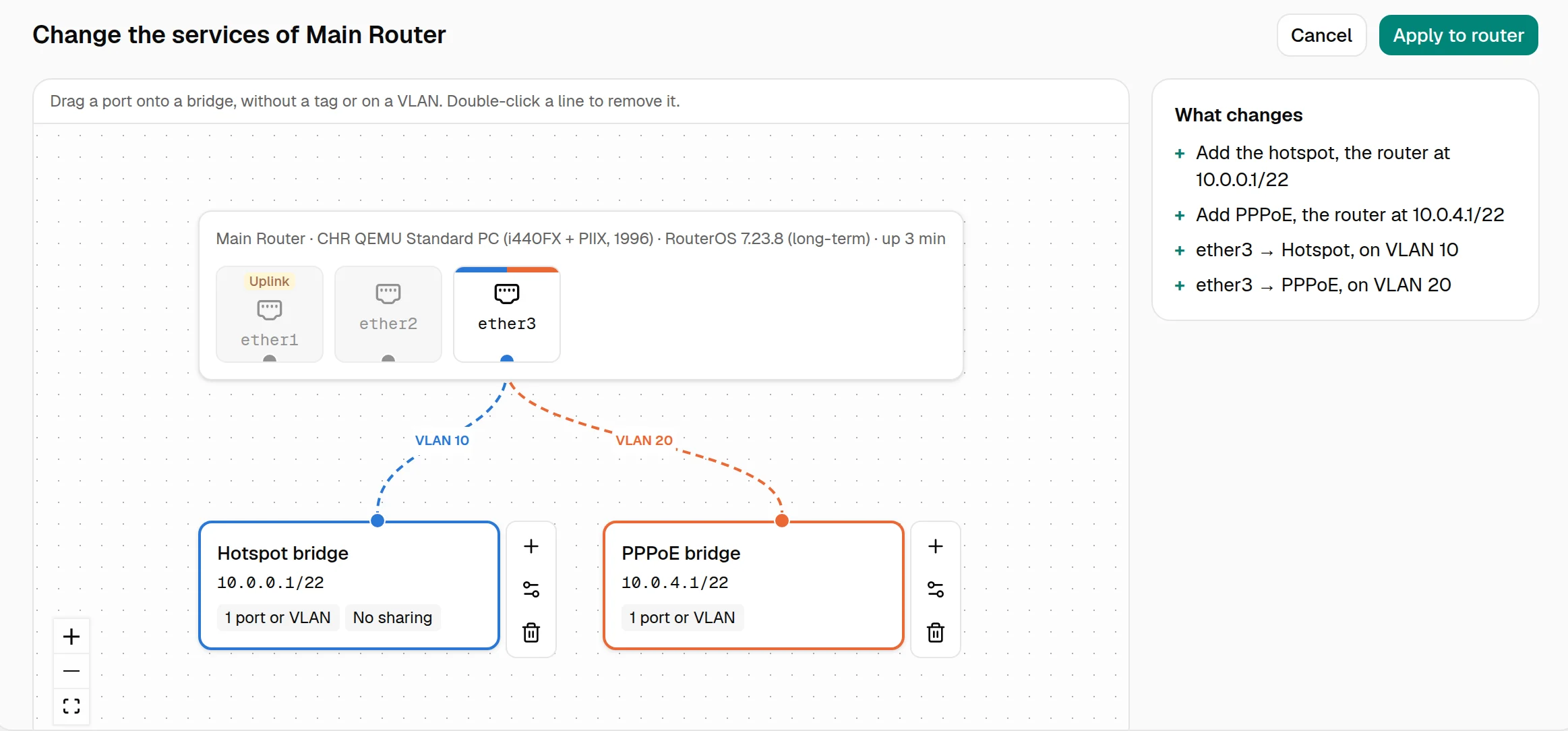
Planning the services of a router in RadiusOne: ether1 is the uplink, ether3 carries the hotspot on VLAN 10 and PPPoE on VLAN 20, and the changes are listed in words before they are applied
  1. See your ports

    Once the command has run, the router's Services tab shows its ports, which one is the uplink, and which are free.

  2. Give each port a service

    Hotspot or PPPoE on a port, or VLANs on it when your switch, microwave link or OLT tags the traffic. A service can use several ports. RadiusOne makes a VLAN interface for each VLAN; the filtering stays on the switch or OLT.

  3. Apply

    The dashboard sets it up through the tunnel, or gives you a command to paste. If a name, port or subnet is already in use, it stops without changing anything.

To change it later, apply a new setup the same way; customers who are online are disconnected for a moment. Applying an empty setup removes everything the setup added.

Once a router is connected, the dashboard shows its health, sessions and failed logins, and emails you when it goes offline. Routers on the Features page

What the command changes

  • Adds the tunnel to RadiusOne and points RADIUS logins and accounting at it.
  • Turns on RADIUS for PPP, and RADIUS incoming, so an unpaid PPPoE account is cut off and restored without dropping its connection. An unpaid hotspot session is ended.
  • Sets every hotspot profile to log in through RADIUS, with the RadiusOne login and payment pages.
  • Adds the firewall, NAT and web proxy rules that show unpaid customers the notice page, and keeps customers away from the RADIUS ports.
  • Adds a RadiusOne API user that only works from the platform, through the tunnel. The dashboard uses it to read the router's ports and health and to apply service setup.

The rules and entries it adds have a comment starting with r1:, and running it again replaces only those. It changes the PPP, RADIUS, hotspot profile, web proxy and API settings without keeping the old values: export your configuration first if you may want to go back.

Requirements

  • A MikroTik on RouterOS 6 or 7, with working internet and DNS.
  • The router can reach the platform: TCP 443 out for the setup download, and UDP 443 out for WireGuard, or TCP 441 out for SSTP on RouterOS 6.
  • On RouterOS 7.20 and newer, the right date and time on the router.
  • On RouterOS 7, a device-mode that allows fetch, hotspot and proxy. If hotspot or proxy is off, the command stops and says what to run; if fetch is off, the router refuses the command and the dashboard shows the fix.
  • To keep your setup: the hotspot set up before you run the command, and for PPPoE an address pool, a PPP profile and a PPPoE server.
  • The router's own web proxy turned off.

Limits

  • We do not promise that every router and every configuration works. Tell us your router model and RouterOS version before you start, and we will check.
  • MikroTik only. Other router brands are not supported.
  • Every router connects through the tunnel. Routers that talk to a public RADIUS address directly are not offered yet.
  • There is no undo. The command and the setup do not back up the router, so export your configuration first. To go back by hand, remove the entries marked r1: and restore the PPP, RADIUS, hotspot profile, web proxy and API settings from your export.
  • A router cannot be removed from RadiusOne yet. Disabling it on its page stops its logins and its tunnel.
  • A hotspot profile you add later needs the command run again.

Details and troubleshooting

RouterOS versions in detail
RouterConnects overNotes
RouterOS 7.20 and newerWireGuardThe router checks the platform's certificate during setup, so its clock must be right.
RouterOS 7 before 7.20WireGuardBoth ways of setting up work.
RouterOS 6SSTPBoth ways of setting up work. Tried in our lab, not yet on the live platform.
Before RouterOS 6Not supportedUpgrade first.

To see your version, run /system resource print in the router's terminal and read the version line.

The command stops with "cert not valid"

The router's clock is wrong. This only happens on RouterOS 7.20 and newer. Set the date and time, or turn on NTP, and run the command again.

The command stops with a 404 error

The command has expired after 24 hours, has already finished on its router, or was replaced by a newer one. Make a new one in the dashboard. If it stopped halfway, you can run the same command again within 24 hours.

The command says device-mode does not allow a feature

Run the device-mode command it shows, then confirm within 5 minutes by pressing the reset or mode button once, or by turning the power off and on. The router restarts. Then run the command again.

Customers log in but have no internet

Check NAT. The subnets of your hotspot and PPPoE pools need a masquerade rule out of your uplink, with no accept rule above it that catches the same traffic. Automatic setup adds its own masquerade above your rules.

An unpaid customer can still browse

Connections that your own fasttrack rule has already sped up can keep working for a while after a cut-off. New connections are blocked: a page opened over plain HTTP shows the notice, and HTTPS pages and apps simply fail.

A hotspot profile I added later does not use RadiusOne

The command sets up the hotspot profiles that exist when it runs. Make a new command and run it again after adding a profile.

The router shows as offline

A router counts as online when its tunnel was active in the last 4 minutes. Check that it has internet and can reach the platform on the ports above. ISP admins get an email when a router has been offline for 5 minutes.

Check your router with us

We are onboarding a small number of ISPs in Uganda. Send us a WhatsApp message with your ISP name, whether you run hotspot, PPPoE or both, and your RouterOS version. We check that your setup is supported, agree your rates, and help you connect your first router.